From PACS to PowerPoint in five steps
Rad2Share records a region of your PACS viewer while you scroll through a series, and turns it into a clean image stack for teaching and case discussion. It is not meant for diagnosis.
- Browser
- Chrome or Edge on a desktop or laptop.
- Account
- A Rad2Share account. Sign up if you do not have one yet.
- PACS
- Your viewer open in its own window, on the series you want.
De-identify before you record. Hide patient overlays in your PACS (name, date of birth, patient ID), or make sure they fall outside the region you draw in step 2. Rad2Share does not remove patient data for you.
Start a recording
Sign in and open Capture. Click Record. Your browser asks what you want to share: pick the window that shows your PACS viewer.

Draw a region around the image
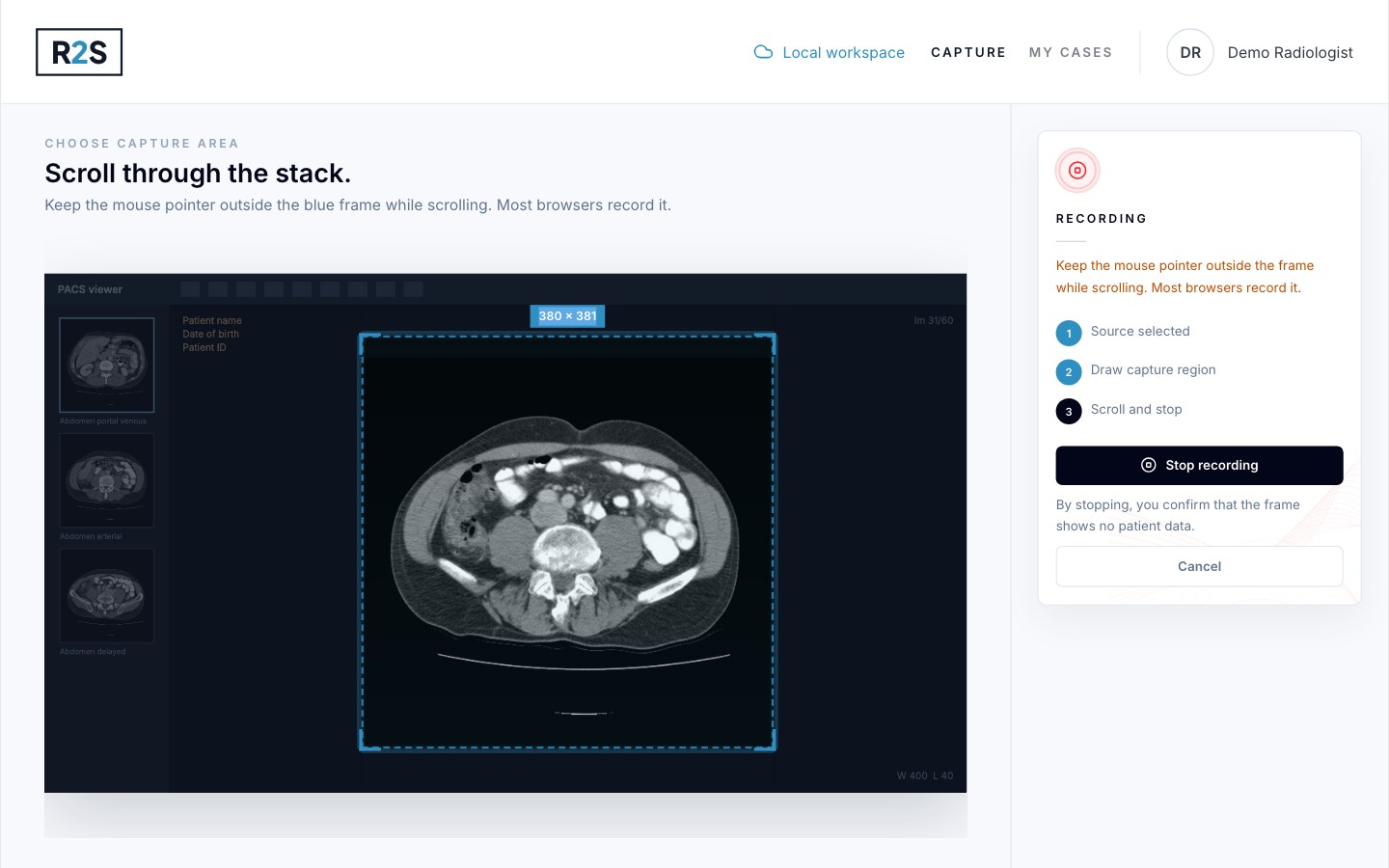
Drag from the top left to the bottom right of the image. Only the pixels inside the blue frame are captured, so keep the patient overlays outside it. Recording starts as soon as you release the mouse.

Scroll through the stack
Scroll through the series in your PACS at a steady pace. Keep the mouse pointer outside the blue frame, because most browsers record the pointer too. Click Stop recording when you have reached the end.
By stopping, you confirm that the frame shows no patient data. The app says so under the button.
Review the frames
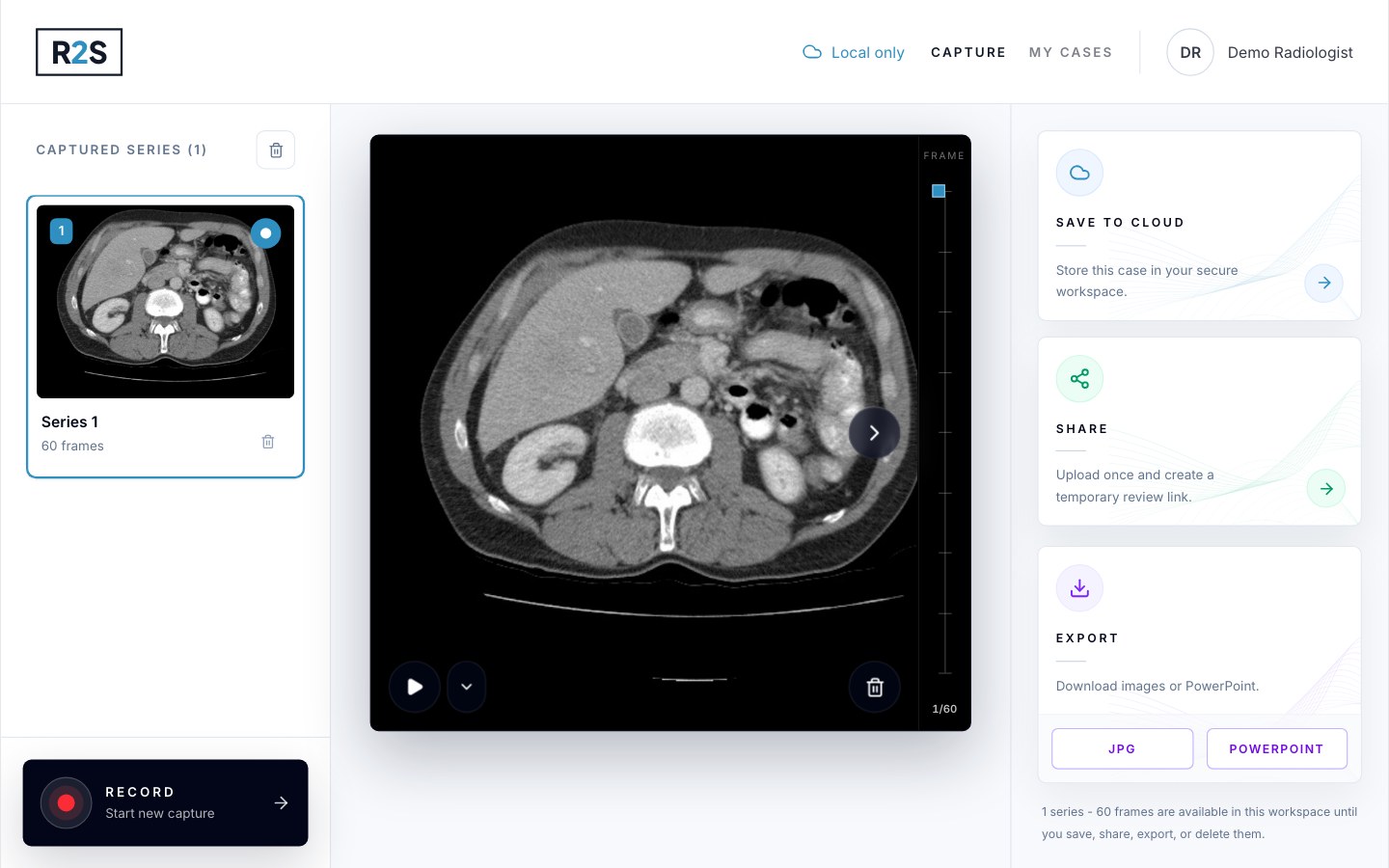
Rad2Share removes duplicate frames and puts the rest in order. Play the series or step through it with the frame slider, and delete any frame you do not want. Need another series or phase? Click Record again; each recording is added to the list on the left.
Export
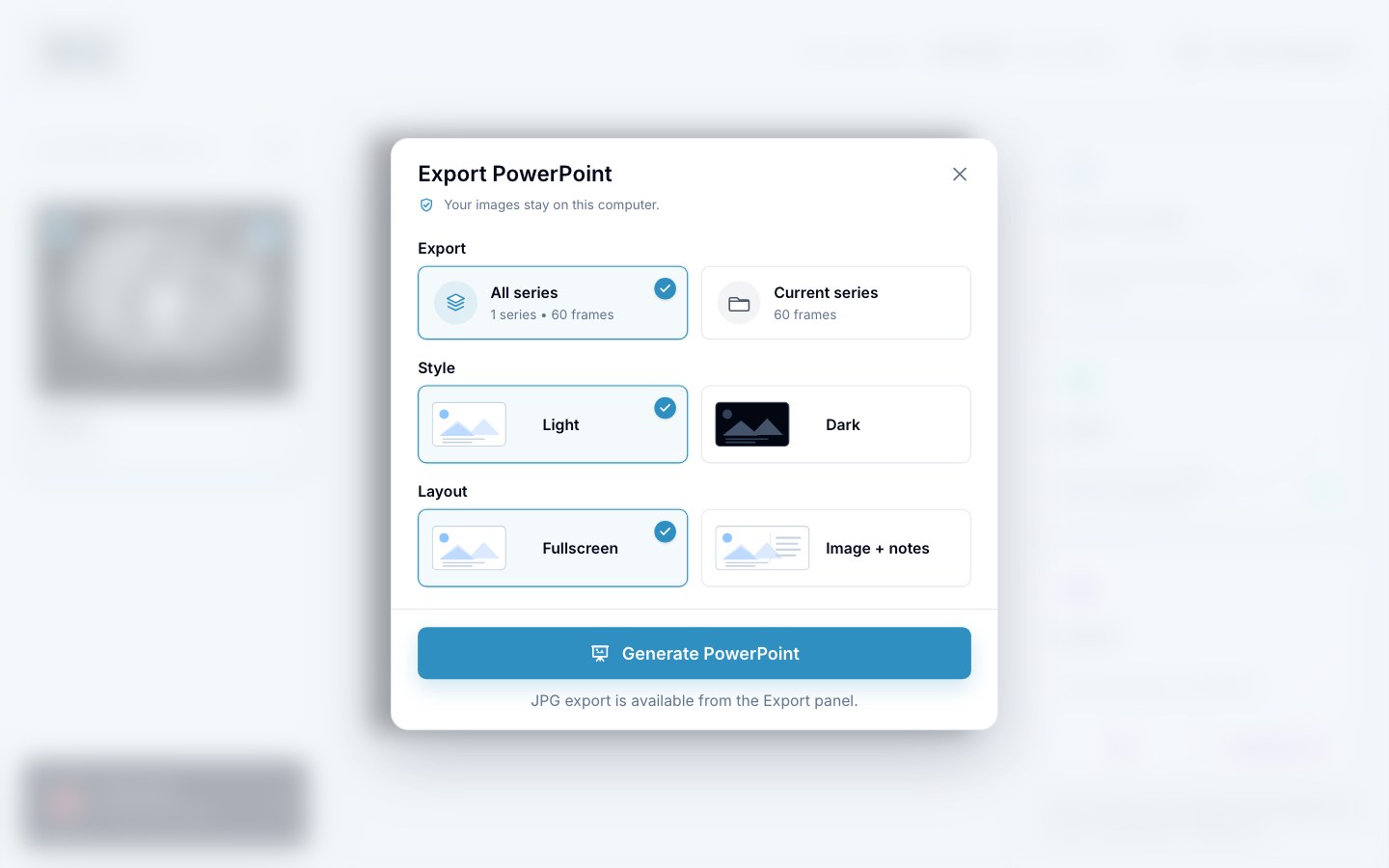
Click PowerPoint for a slide deck, or JPG for the image stack. The export is generated in your browser: your images stay on this computer.
Optional: Save to cloud or Share uploads the case so you can open it on another device or send a review link. Nothing is uploaded unless you choose one of these.
Good to know
- The capture workspace is a working area in your browser on this computer, not an archive. Export what you want to keep, or save it to the cloud. You will not find a recording on another workstation unless you saved it to the cloud.
- Stuck, or is something not working as described here? Check the FAQ or contact us.